
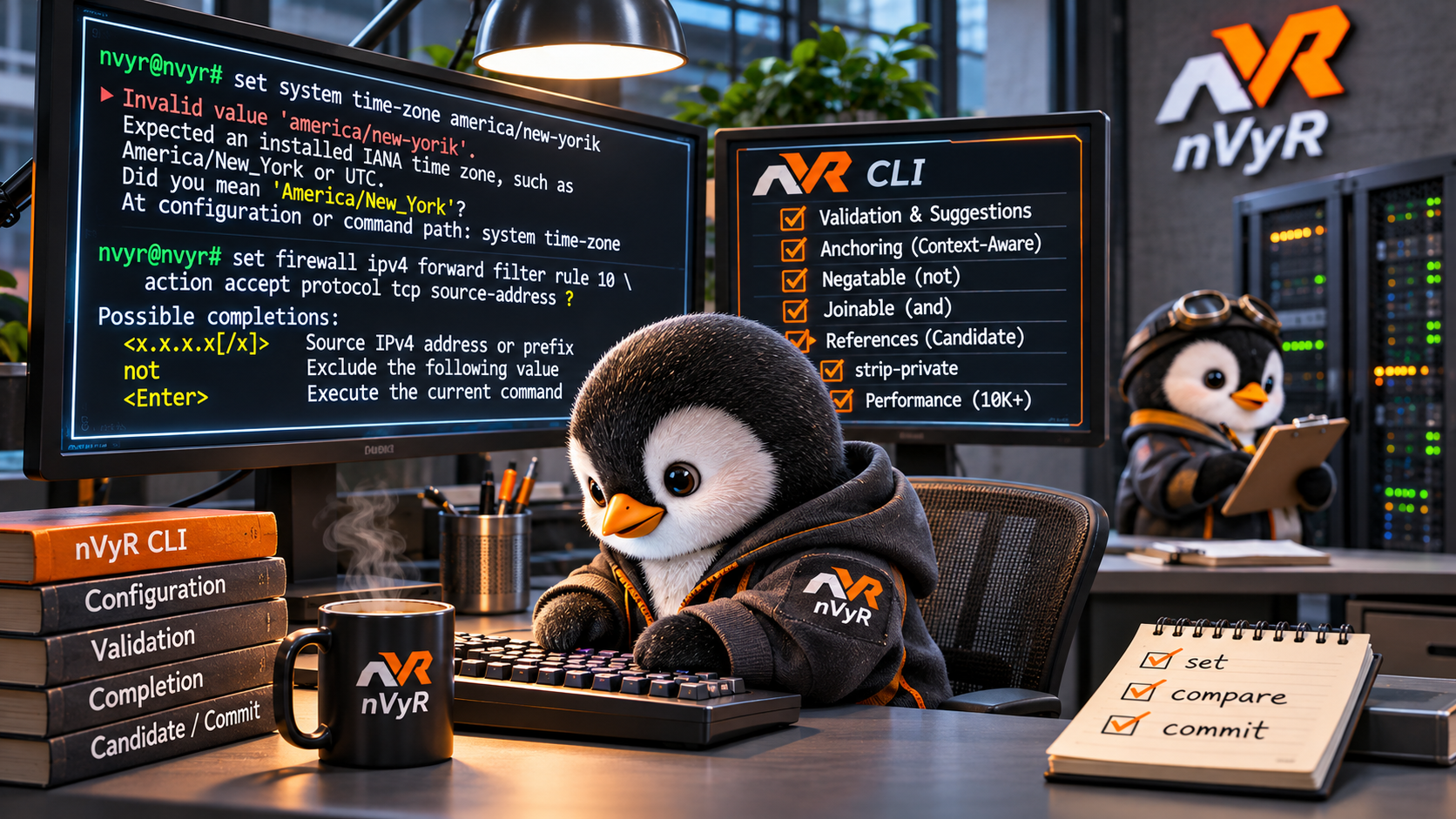
If you’ve used a Vyatta-style CLI, set, compare, and commit should feel familiar in nVyR. Where things start to look different is halfway through typing a command. Can I set another property without repeating the path? If a value can be excluded, will pressing ? tell me how? And if I get the spelling wrong, can the router tell me what it expected?
Those are a few of the things I wanted to address when building the CLI. Let’s start with a typo. We can see what nVyR does with it before we’ve even made a change to the router.
Validation that suggests a correction
nvyr@nvyr# set system time-zone america/new-yorik
Invalid value 'america/new-yorik'. Expected an installed IANA time zone, such as America/New_York or UTC. Did you mean 'America/New_York'?
At configuration or command path: system time-zone
Here I got the capitalization, separator, and spelling wrong. The validator has the installed time zones available, so it can suggest an actual value I can use. I still get to decide whether New York was what I meant.
Trying a change with configure draft
If I want to try the examples while someone else is configuring the router, I can enter configure draft. I get my own candidate without taking the commit lock. Notice the (draft)# prompt.
nvyr@nvyr:~$ configure draft
nvyr@nvyr(draft)# set interfaces dummy dum98 description draft-example

nvyr@nvyr(draft)# compare | commands
set interfaces dummy dum98 description draft-example

nvyr@nvyr(draft)# discard
nvyr@nvyr(draft)# exit
nvyr@nvyr:~$
That set line under compare | commands is what it would take to create dum98 with that description. I can inspect the result without creating the interface on the router. A draft session can’t commit or save.
Anchoring and context-aware completion
An anchor is a point in the command tree the CLI can return to while I’m still typing the same line. Once I’ve named an object, I can set several of its properties without typing its path again. A firewall rule makes this easy to see because compare | commands shows each setting on its own line.
nvyr@nvyr# set firewall ipv4 forward filter rule 10 action accept protocol tcp source-address 192.0.2.0/24 destination-address 198.51.100.10 destination-port 443

nvyr@nvyr# compare | commands
set firewall ipv4 forward filter rule 10 action accept
set firewall ipv4 forward filter rule 10 destination-address 198.51.100.10
set firewall ipv4 forward filter rule 10 destination-port 443
set firewall ipv4 forward filter rule 10 protocol tcp
set firewall ipv4 forward filter rule 10 source-address 192.0.2.0/24
Here, rule 10 is the anchor. After action accept, I can move straight to protocol tcp. Both belong to rule 10. I entered five settings in one command, and I can still change or delete any of those settings independently.
What happens to the completion list as I fill in a rule? Here’s the top of the list when I press ? just after rule 10. I’ve shortened the menus so you can see what changes.
nvyr@nvyr(draft)# set firewall ipv4 forward filter rule 10

Possible completions:
<Enter>                    Execute the current command
action                     Rule verdict
add-to-group               Add or refresh a dynamic group member using packet fields
connection                 Match tracked connection metadata
…
Now I’ve typed action accept and pressed ? again. The first keyword is add-to-group. A rule takes one action, and I’ve already supplied it on this line.
nvyr@nvyr(draft)# set firewall ipv4 forward filter rule 10 action accept

Possible completions:
<Enter>                    Execute the current command
add-to-group               Add or refresh a dynamic group member using packet fields
connection                 Match tracked connection metadata
…
Compare that with source-address. I’ve entered 192.0.2.10 below, and the menu still offers source-address because I can add another one. Each listing echoes the command above it, which also makes it easier to follow what I typed when I scroll back.
nvyr@nvyr(draft)# set firewall ipv4 forward filter rule 10 action accept source-address 192.0.2.10

Possible completions:
<Enter>                          Execute the current command
…
source-address                   Source IPv4 address or prefix
source-address-group             Match source address using a named group
…
Negatable nodes – discovering exclusions with “not”
Say I need to exclude a source address. I might already know to put a ! in front of it on another CLI. But if I don’t know that convention, how would I discover it? Here’s what nVyR shows when I press ? after source-address.
nvyr@nvyr# set firewall ipv4 forward filter rule 10 action accept source-address

Possible completions:
<Enter>        Execute the current command
<x.x.x.x[/x]>  Source IPv4 address or prefix
not            Exclude the following value
A negatable node gives me a literal not keyword to complete. If I enter source-address not 192.0.2.10, the exclusion applies to that address. The value after not still goes through the IPv4 address or prefix validator. Putting the keyword in front of an IPv6 address won’t make it a valid IPv4 match.
Joinable nodes – completing each value after “and”
TCP flags are where this gets a little more interesting. Suppose I want SYN set and ACK clear. Instead of remembering where a comma or an exclamation mark goes, I can build the expression a piece at a time. Here’s the actual help after syn and not.
nvyr@nvyr# set firewall ipv4 forward filter rule 10 tcp-flags syn and not

Possible completions:
<flag>  Flag required set; use not for clear and and to combine
ack     Acknowledgment field is significant
cwr     Congestion window reduced
ecn     ECN echo
fin     Finish sending data
psh     Push buffered data
rst     Reset the connection
urg     Urgent pointer is significant
Notice what’s missing from that list? I’ve already used syn. The CLI offers the flags I can still choose, and ack is right there. The finished expression is tcp-flags syn and not ack. That’s what I mean by joinable. The and keeps me inside the flag list, and not applies to the next flag. Completion and validation both understand the individual pieces.
Finding references in the candidate
Before I delete an interface, I want to know what still uses it. More specifically, I want the answer to account for the changes I’ve already made in this session. Watch what happens to show references when I add a reference and then delete it.
nvyr@nvyr# set interfaces dummy dum98
nvyr@nvyr# set firewall ipv4 forward filter rule 10 outbound-interface dum98

nvyr@nvyr# show references interfaces dummy dum98
Referenced by:
  firewall ipv4 forward filter rule 10 outbound-interface dum98

nvyr@nvyr# delete firewall ipv4 forward filter rule 10 outbound-interface dum98
nvyr@nvyr# show references interfaces dummy dum98
No references found.
I didn’t commit between those commands. The first lookup sees the reference I just added, and the second sees that I removed it. That’s the point at which I want the answer, while I’m still deciding what to commit.
Sharing operational output with strip-private
One example from my own WAN firewall is worth showing here. I tested SSH to the router from my other WAN connection and wanted to share the entry it added to my fast-drop match group. I also wanted to keep enough of the addresses visible to recognize the connection.
l0crian@NPB7# run show firewall group match-group ipv4 log_dropped_input | strip-private partial | match 172.58
—        172.58.xxx.xxx    55.255.xxx.xxx         tcp         22                  543s
The first pipe masks the ends of the addresses. The second can still find my source by its visible prefix, and you can see the protocol, destination port, and remaining timeout in the same line.
What if I’m sharing interface output with another engineer? Keeping our internal addresses visible might be the whole point. For that I use strip-private public. I put ten dummy interfaces in an isolated lab, then compared these two views.
show interfaces dummy
show interfaces dummy | strip-private public
Here are the IP address columns side by side. Look at dum0 and dum1 for IPv4, then dum6 and dum7 for IPv6.
Interface  Original IP address        With strip-private public
---------  ------------------------   -------------------------
dum0       10.5.0.1/32                10.5.0.1/32
dum1       1.1.1.1/32                 <ipv4>/32
dum2       172.20.5.1/32              172.20.5.1/32
dum3       8.8.8.8/32                 <ipv4>/32
dum4       192.168.10.1/32            192.168.10.1/32
dum5       9.9.9.9/32                 <ipv4>/32
dum6       fd42:10::1/128             fd42:10::1/128
dum7       2606:4700:4700::1111/128   <ipv6>/128
dum8       fd42:20::1/128             fd42:20::1/128
dum9       2001:4860:4860::8888/128   <ipv6>/128
The three RFC 1918 addresses and the two IPv6 unique-local addresses are still readable. The five globally routable addresses are masked, but I can still see the address family and prefix length. That lets the other engineer follow the internal addressing while I keep the public endpoints out of the conversation.
Coordinating changes with commit delay
Here’s a chicken-and-egg problem I can run into on a remote change. I’m on the management side of R1, and my only path to R2 crosses their untagged transit link. I want to move that link to VLAN 120 at both ends and keep the same IP addresses. If I commit R1 first, R2 is still listening for untagged frames and I lose the path I need to commit R2. If I commit R2 first, my session to it drops, and I can’t check its new configuration until I’ve changed R1.
I can prepare both candidates and schedule both commits while the old path still works. I start at the far end. Then, about 15 seconds later, I schedule the near end with a shorter delay.
R2 (far end)
commit-confirm 5 delay 1

R1 (near end, about 15 seconds later)
commit-confirm 5 delay 0.75
The units are minutes. R2 waits 60 seconds and R1 waits 45, so both aim for roughly the same point in the change window. Each router verifies and freezes its own candidate when I schedule it. Once both commands are in, each router can apply its change even if my SSH session drops. There can be a brief gap while one end is tagging and the other catches up, but I’ve already delivered the commit to both boxes. I don’t have to reach an isolated router to finish the cutover.
The 5 is a separate timer. Each router gives me five minutes to confirm, starting when its own commit finishes. I reconnect to R2 over the new transit link, verify reachability, and run confirm on both routers. If the new path never comes up, leaving both unconfirmed lets each revert. If I spot a problem before the cutover starts, show config-status shows the schedule and cancel cancels it on that router. For a change that only needs a delay, commit delay 0.5 starts it after 30 seconds.
What does anchoring look like at 10,000 commands?
There are two useful numbers in this test. The benchmark entered 10,000 anchored set commands, each with five settings. Expand those commands the way we did with compare | commands and the candidate contains the equivalent of 50,000 individual set lines across 10,000 rules.
FIREWALL BENCHMARK (ANCHORED SET)
   Entries |   Set/Load (s) |   Commit (s) |   Delete (s) |   Del Commit (s) |   Set/Load/s |   Delete/s
-----------+----------------+--------------+--------------+------------------+--------------+------------
     10000 |           2.13 |         1.01 |         0.00 |             0.19 |      4688.44 |   51401.53
Building that candidate took 2.13 seconds, about 4,688 anchored commands per second. The commit took another 1.01 seconds. That’s roughly 3.14 seconds from the first set to the end of commit. At the keyboard I care about how many times I have to type the same path. At review time I care about seeing every setting that changed. Anchoring lets me have both.
Conclusion
If you try one thing from this tour, pick an object you’d normally configure over several lines. Enter the first setting, press ?, and see what else you can do from there. Then run compare | commands. Seeing the long form next to what you actually typed is probably the quickest way to get comfortable with anchoring. You can try the whole thing in configure draft and use discard when you’re done.
If you’re curious why I started building a router OS in the first place, I covered that in Introducing nVyR. If you’d rather get straight to a lab, the nVyR releases page is where you can pick up an image, and the CLI guide has the command examples to keep handy at the prompt.


Leave a Reply